

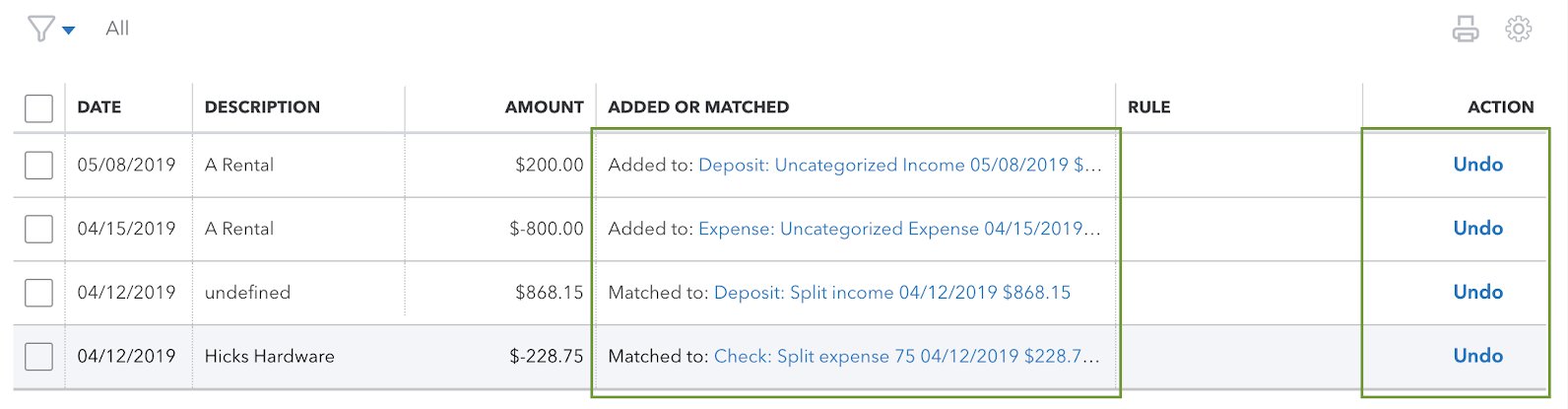
Unmatching a transaction in QuickBooks Online can be a lifesaver when discrepancies arise. To unmatch a transaction in QuickBooks Online, simply locate the transaction in the register, click on it, and then select “More” followed by “Match.” Undo the match by clicking on “Unmatch.” It’s a straightforward process that can save you time and frustration. Let’s delve into the step-by-step guide for unmatching transactions in QuickBooks Online.

How to Unmatch a Transaction in QuickBooks Online
Welcome to our comprehensive guide on how to unmatch a transaction in QuickBooks Online! Unmatching a transaction can be a crucial step when you need to correct errors or reconcile your accounts accurately. In this article, we will walk you through the process of unmatching transactions in QuickBooks Online, step by step. By the end of this guide, you will have a clear understanding of how to effectively manage your transactions in QuickBooks Online.
Understanding Transaction Matching in QuickBooks Online
Before we delve into unmatching transactions, let’s first understand what transaction matching is in QuickBooks Online. Transaction matching is a feature that helps you link your bank transactions with the corresponding entries in your accounting records. This process ensures that your financial records remain accurate and up to date.
When a transaction is matched in QuickBooks Online, it means that the system has identified a bank transaction that corresponds to an existing entry in your books. These matched transactions are typically marked with a green checkmark, indicating that they have been successfully reconciled.
When to Unmatch a Transaction
There are several scenarios where you may need to unmatch a transaction in QuickBooks Online. Some common reasons include:
1. Incorrect Matching:
If a transaction was matched incorrectly, unmatching it is necessary to maintain the accuracy of your financial records.
2. Reconciliation Discrepancies:
When reconciling your accounts, you may encounter discrepancies that require unmatching and re-matching transactions to resolve.
3. Duplicate Transactions:
In cases where duplicate transactions have been matched, unmatching is essential to avoid inaccuracies in your accounting records.
Step-by-Step Guide to Unmatch a Transaction in QuickBooks Online
Now, let’s walk through the process of unmatching a transaction in QuickBooks Online:
Step 1: Access the Banking Tab
Start by logging into your QuickBooks Online account and navigating to the ‘Banking’ tab from the left-hand menu.
Step 2: Select the Account
Choose the bank account where the transaction you wish to unmatch is located.
Step 3: Locate the Matched Transaction
Identify the transaction that you want to unmatch from the list of matched transactions.
Step 4: Unmatch the Transaction
Click on the transaction to open it, then look for the ‘Matched’ status. Next to the status, you will find the ‘Undo’ option. Click on ‘Undo’ to unmatch the transaction.
Step 5: Confirm Unmatching
QuickBooks Online will prompt you to confirm that you want to unmatch the transaction. Click ‘Yes’ to confirm the unmatching process.
Step 6: Review and Reconcile
After unmatching the transaction, review your records to ensure accuracy. Make any necessary adjustments and re-match the transaction if needed.
Tips for Efficiently Managing Transactions in QuickBooks Online
Here are some additional tips to help you efficiently manage your transactions in QuickBooks Online:
1. Regularly Reconcile Your Accounts:
Performing regular reconciliations can help identify and resolve discrepancies in your financial records.
2. Use Bank Rules:
Set up bank rules in QuickBooks Online to automate transaction categorization and matching.
3. Monitor for Duplicate Entries:
Keep an eye out for duplicate transactions and promptly unmatch and resolve them.
4. Seek Professional Assistance:
If you encounter complex reconciliation issues, consider seeking help from a financial professional or QuickBooks expert.
Unmatching transactions in QuickBooks Online is a vital skill for maintaining accurate financial records. By following the steps outlined in this guide, you can easily unmatch transactions whenever necessary. Remember to regularly reconcile your accounts and stay vigilant for any discrepancies or errors that may arise. With the right tools and knowledge, managing your transactions in QuickBooks Online can be a smooth and efficient process.
We hope this guide has been helpful in expanding your understanding of unmatching transactions in QuickBooks Online. If you have any questions or need further assistance, feel free to reach out to our team or consult the QuickBooks Online support resources. Happy unmatching!
How to Unmatch Transaction on Quickbooks Online (Full 2025 Guide)
Frequently Asked Questions
How do I unmatch a transaction in QuickBooks Online?
To unmatch a transaction in QuickBooks Online, navigate to the Banking or Transactions tab, locate the matched transaction you want to unmatch, and click on it to open the details. Look for the “Matched” status or category and select the option to unmatch the transaction. Confirm the action, and the transaction will be successfully unmatched.
Can I unmatch multiple transactions at once in QuickBooks Online?
Currently, QuickBooks Online does not offer a feature to unmatch multiple transactions simultaneously. You will need to manually unmatch each transaction individually by following the steps to locate the matched transaction and selecting the option to unmatch it.
Is there a way to undo an unmatched transaction in QuickBooks Online?
If you accidentally unmatched a transaction in QuickBooks Online, you can easily rematch it by following the same steps to locate the transaction and match it with the corresponding record. There is no specific undo button for unmatching transactions, but you can rematch them to restore the previous matching status.
Final Thoughts
To unmatch a transaction in QuickBooks Online, locate the transaction and click on it. Select “More” and then “Transaction Journal.” Click on the transaction date and locate the “Journal Transaction” section. Click “More” and then “Delete” to unmatch the transaction. Be cautious when unmatching transactions to ensure accurate bookkeeping. Unmatching transactions in QuickBooks Online is a simple process that can help maintain the integrity of your financial records.